Setup VS Code
This tutorial guides you through the installation and configuration of Visual Studio Code (VS Code) for Python development in the 0013 computer room at the University of Geneva.
Open VS Code
- Create a folder on your
H:/drive nameddata_science - Open
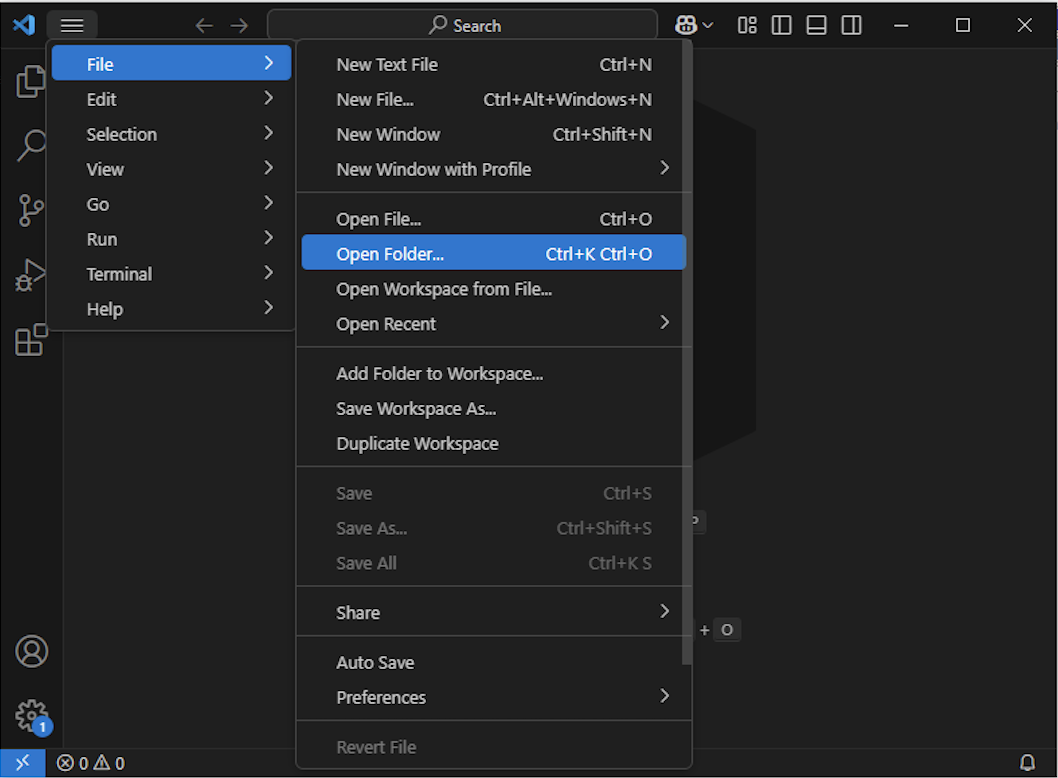
VS Code - Click
File / Open Folderand choose thedata_sciencefolder (Figure 1) - When asked, click to confirm your trust in the system
These steps will ensure that Python works and finds the files in this exact folder.
Create a new Jupyter Notebook
- Type Ctrl + Shift + p (or Cmd + Shift + p on MacOS) to open the command palette
- Type
jupyterand selectCreate: New Jupyter Notebook(Figure 2)
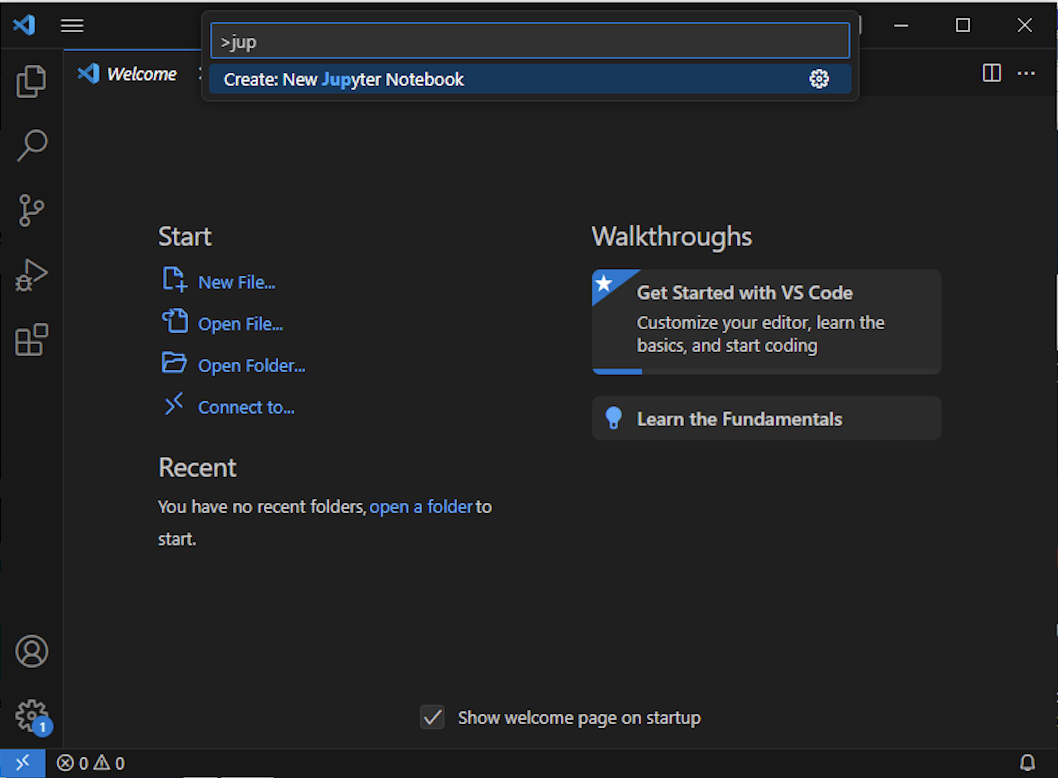
The command palette is a key functionality of VS Code, learning to use it will speed up your workflow.
Install the Python extensions
This step installs the Python extensions for VS Code.
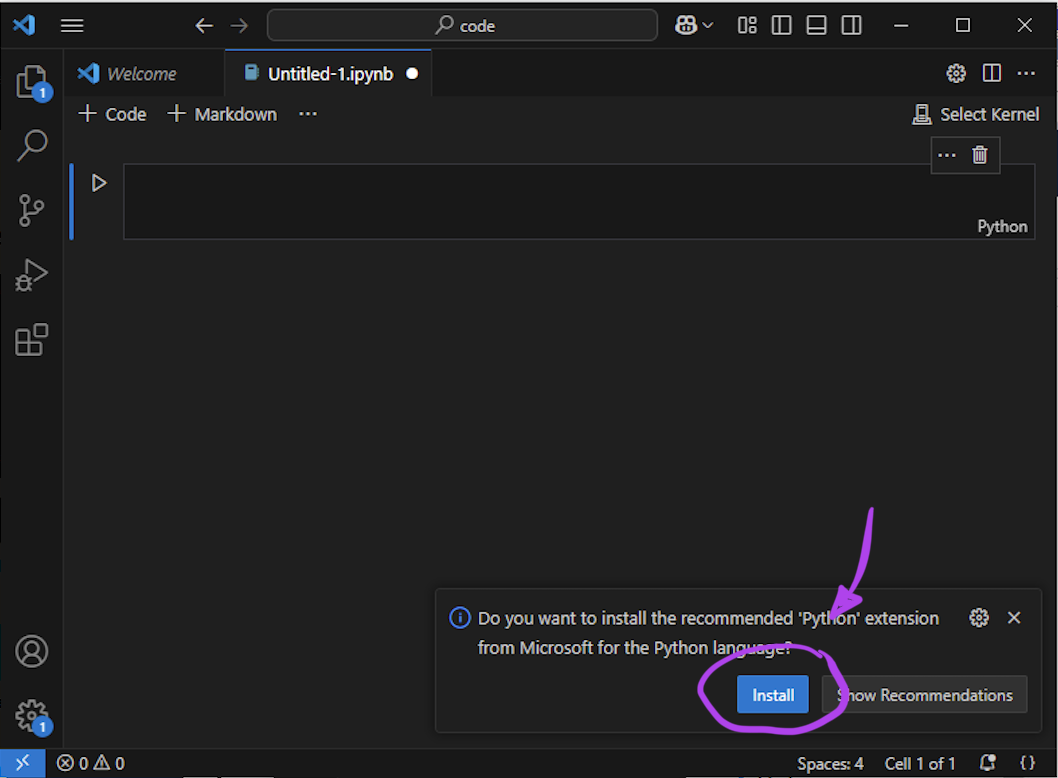
- When asked, click the
Installbutton and wait for it to finish (Figure 3)
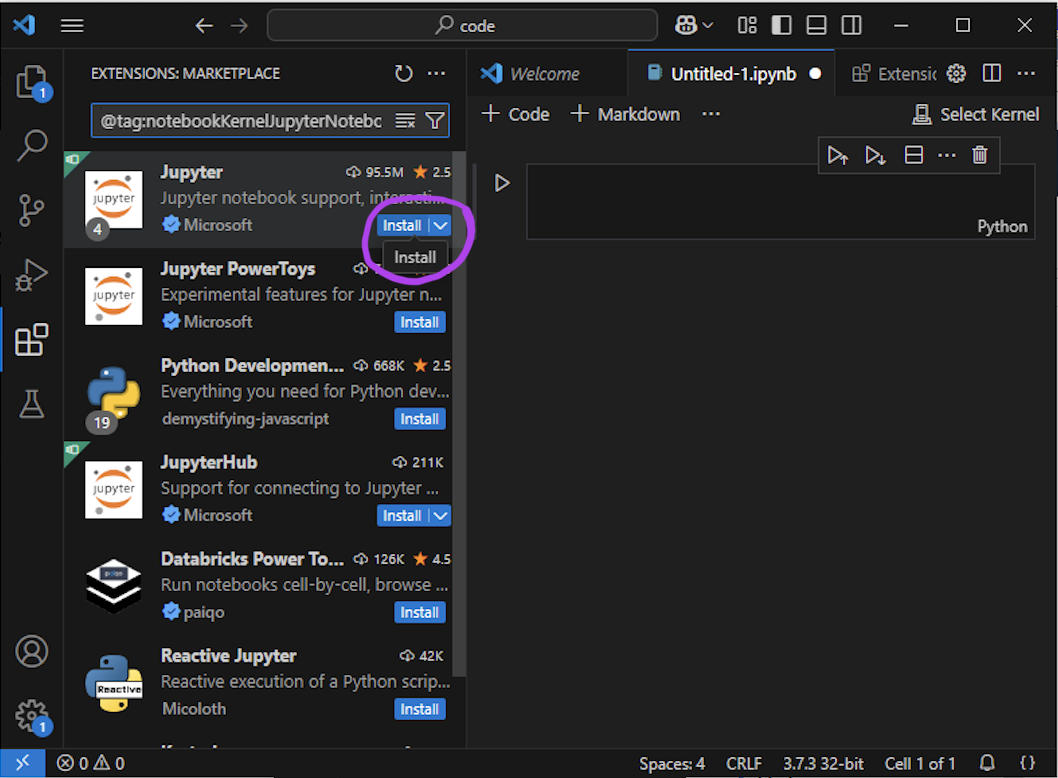
Install Jupyter
Jupyter Notebooks are one of the ways to run Python. This step installs all the required Jupyter stuff for VS Code.
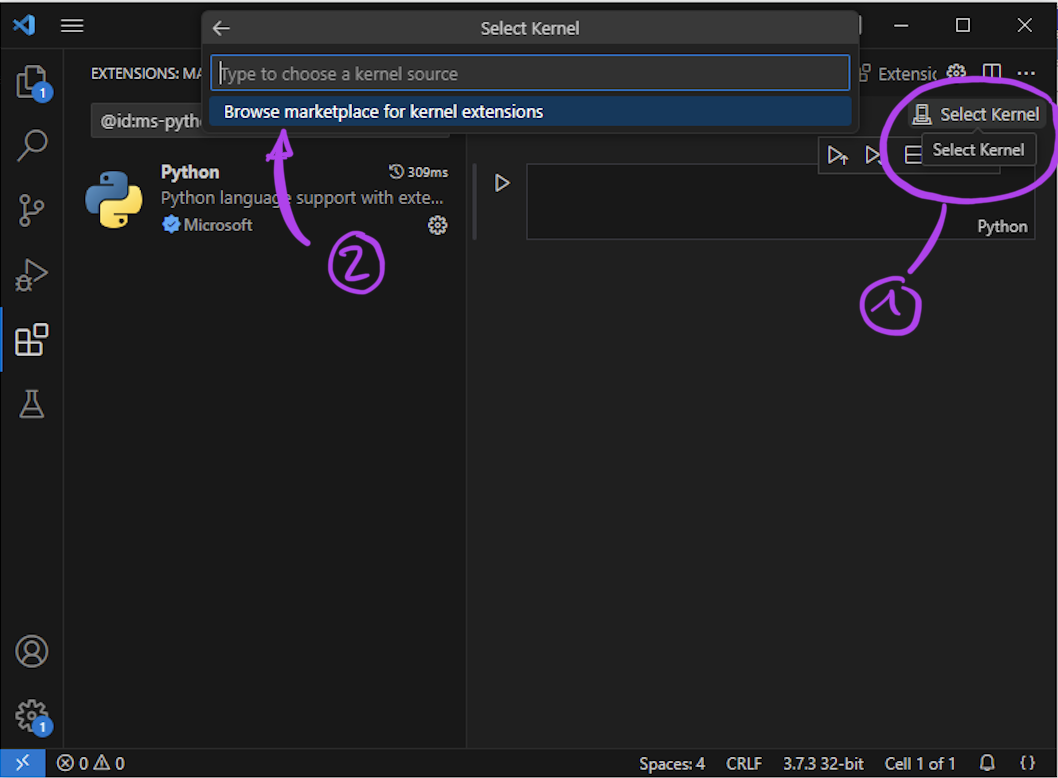
- On the top right corner of the notebook, locate and click on the
Select kernelbutton Figure 4 - Install the
Jupyter notebook supportextension (Figure 5)
Select the right Python
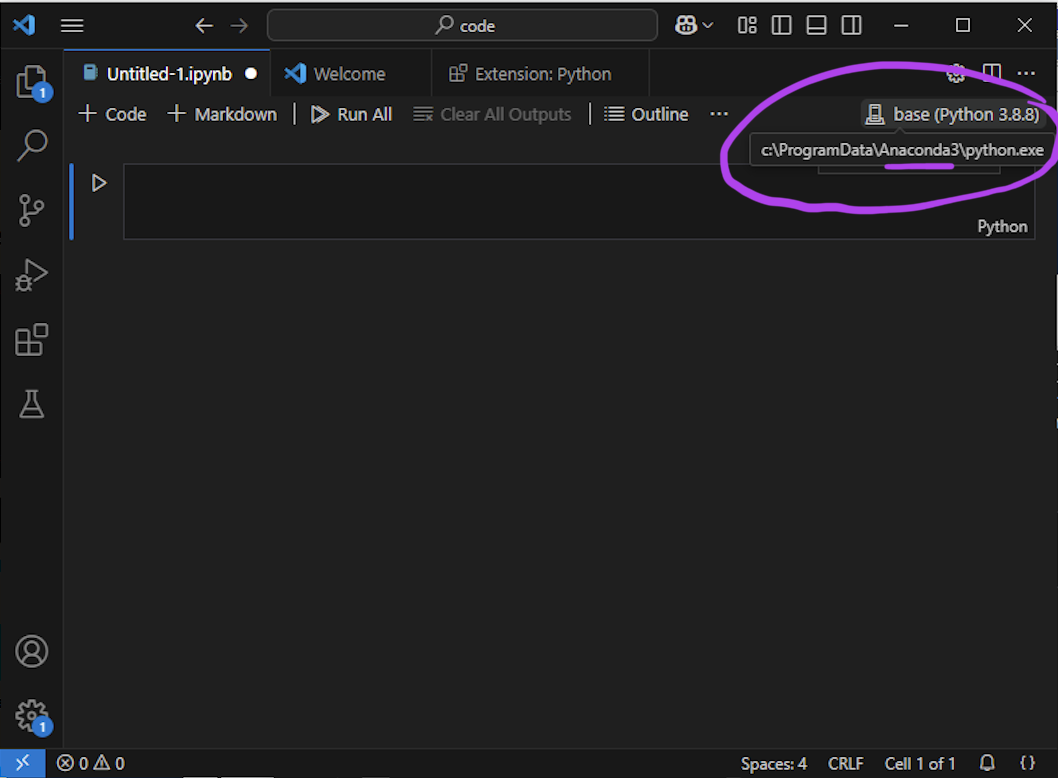
Several versions of Python can be installed on a computer. In the computer room, these versions are controlled by an environment manager called anaconda. This step ensures that the Jupyter notebook will use the right Python version, i.e., the one installed using anaconda.
- On the top right corner of the notebook, where the
Select kernelbutton previously appeared, make sure you seebase (Python 3.x.x)(Figure 6) - If you don’t, click on the button and search for the right one (i.e., there should be
anacondain the path)
Open the course material in VS Code
- Type Ctrl + Shift + p (or Cmd + Shift + p on MacOS) to open the command palette
- Type
simpleand selectSimple Browser: Show - Enter
https://e5k.github.io/Data-Science/ - Click the Simple Browser tab and move it to the right of VS Code to open the course material alongside your Jupyter Notebook